Last updated: October 13, 2026
How to Collect Photos From Your Guests With a QR Code
How to Collect Photos From Your Guests With a QR Code
If you want photos from everyone at an event, the hard part isn't the photos. Everyone's already taking them. The hard part is getting them all into one place afterwards.
A QR code solves that at the source. Guests scan it, a camera opens on their phone, and everything they shoot goes straight into your album. Nobody has to remember to send anything later.
Why a QR code works better than a link
You can absolutely share a Dispo88 camera as a link, and for friends in a group chat that's perfect. But at an in-person event, most guests aren't in your group chat. A QR code on the table means anyone can join in two seconds, including your partner's coworkers and your great-aunt.
There's also no app to install. The camera runs in the phone's browser, so the scan is the whole setup.
How to set it up
- Create a camera at dispo88.com and give it a name (the event, the couple, whatever fits).
- Grab the QR code. Every camera has one, right on the camera page. For a printable poster, upgrade the camera to Event ($39 CAD, one time for that camera). See what each tier includes.
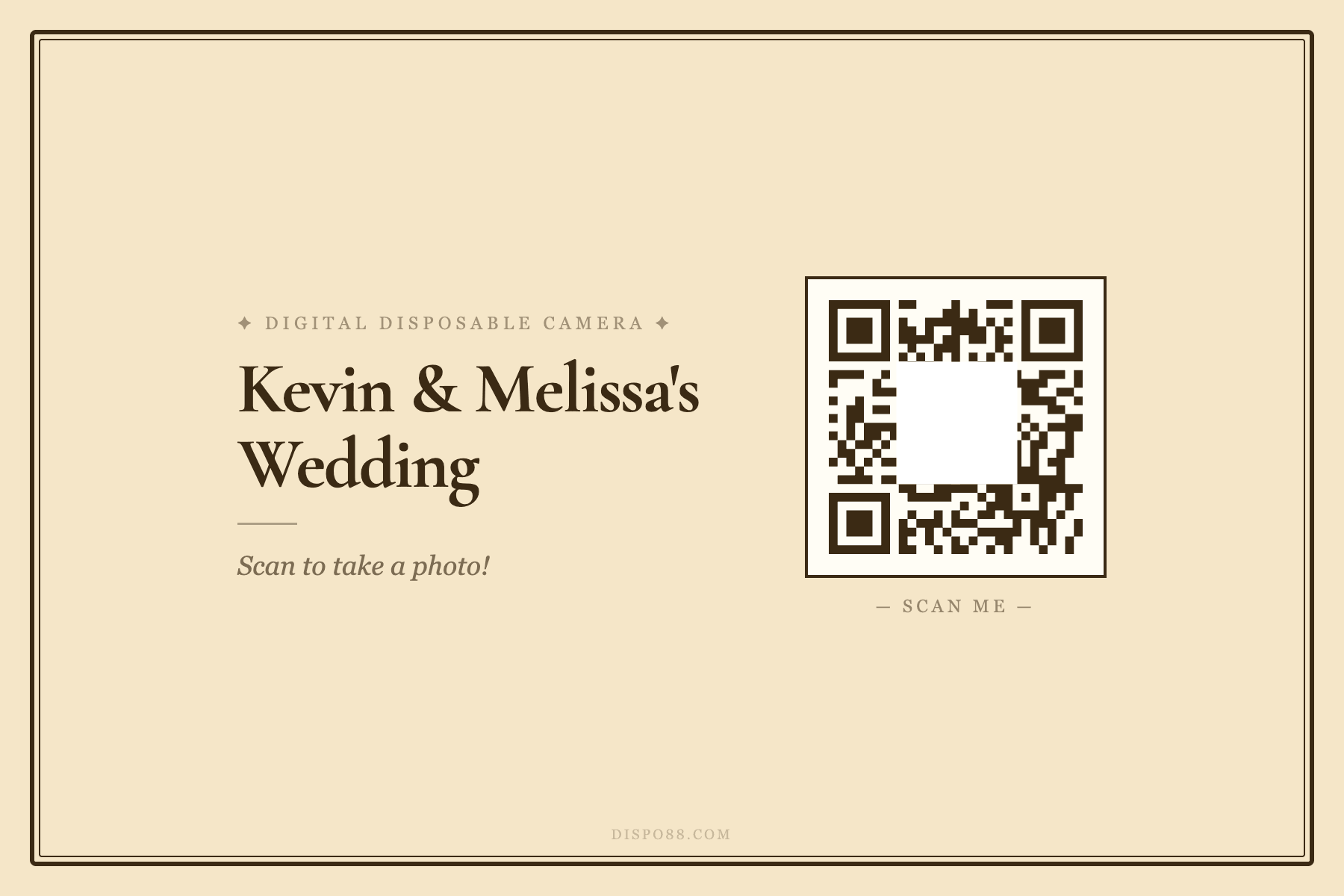
- Open the QR poster from the camera's settings. Pick a style (minimal, retro, bold, wedding, party or film), change the colors, and write your own headline and subline.
- Download or print it. It's postcard-sized, so it fits in a frame, a table stand, or taped to the bar.
- Test it yourself before the event. Scan it, take a photo, and you're set.
Where to put the QR codes
Think about where people stand around with a free hand:
- Every table, if it's a sit-down dinner
- The bar, which everyone visits
- The entrance, so people see it as they arrive
- The photo booth or dessert table, where phones are already out
More spots beats one big sign. People don't go looking for a QR code; it has to be in front of them.
Useful extras for events
A few Event settings pair well with the QR code:
- Guest hint: the message guests see before shooting, like "Get the dance floor!" or "Candids only."
- Password: guests enter it before they can take photos. Print it on the poster or share it at the door.
- Camera lock: close the camera when the night ends.
- Export all photos: download everything as one zip afterwards.
What guests see
They scan, the camera opens, and they shoot. Each photo develops for an hour, then shows up in the album. With album sharing on (included with Event), every guest can come back to the link later and browse the whole night.
FAQ
Do guests need an app to scan the QR code?
No. Any phone camera can scan it, and Dispo88 opens in the browser. Guests don't need an account either.
Is the QR code free?
Yes. Every camera, free ones included, has a QR code on its camera page. The printable QR poster comes with the Event tier, $39 CAD for that camera.
Can I customize the QR poster?
Yes. Choose minimal, retro, or bold, then change the colors, headline, and subline. Download it as an image or print it.
Can guests see all the photos?
Yes on an Event camera, since album sharing is included. Each photo appears an hour after it's taken.
Planning a wedding? Here's how Dispo88 works on the big day.